
Connect OKX with a read-only API Key
Use this guide when you want to connect OKX manually. If TickPro offers OKX OAuth for your account, that is the simpler option: you sign in on the official OKX page and do not copy an API Key.
1Create the key in OKX
2Keep Read enabled only
3Paste three values into TickPro
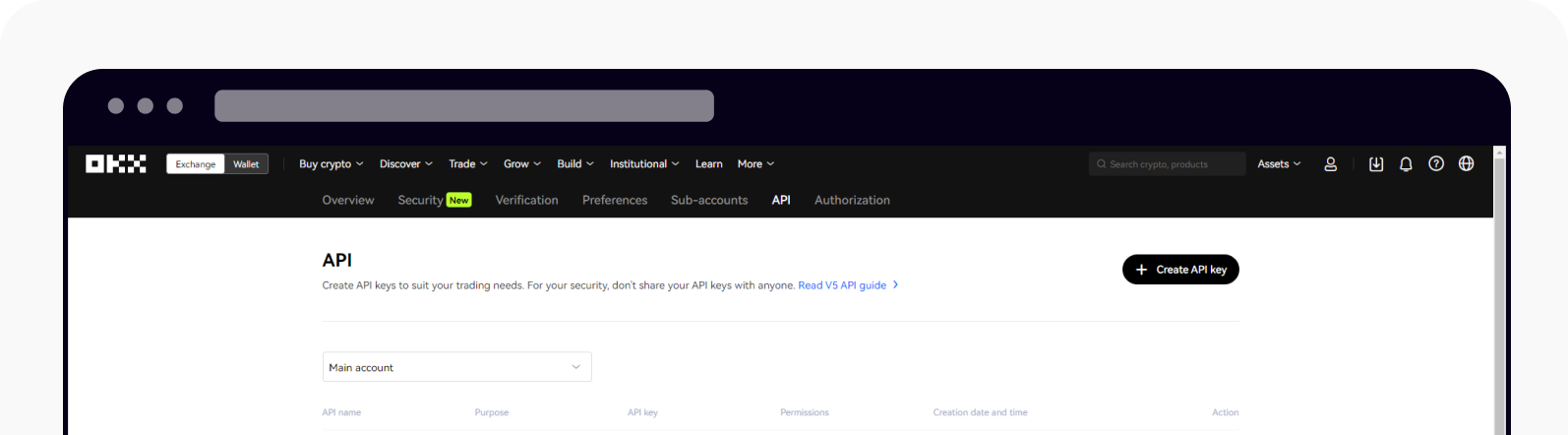
1. Open OKX API management
Section titled “1. Open OKX API management”- Website: Sign in → profile menu → API and connections → Create API key.
- OKX app: Sign in → Menu → API → Create API key.
The exact labels can vary by region. OKX may require identity verification, security settings, or a minimum account balance before showing the create button.
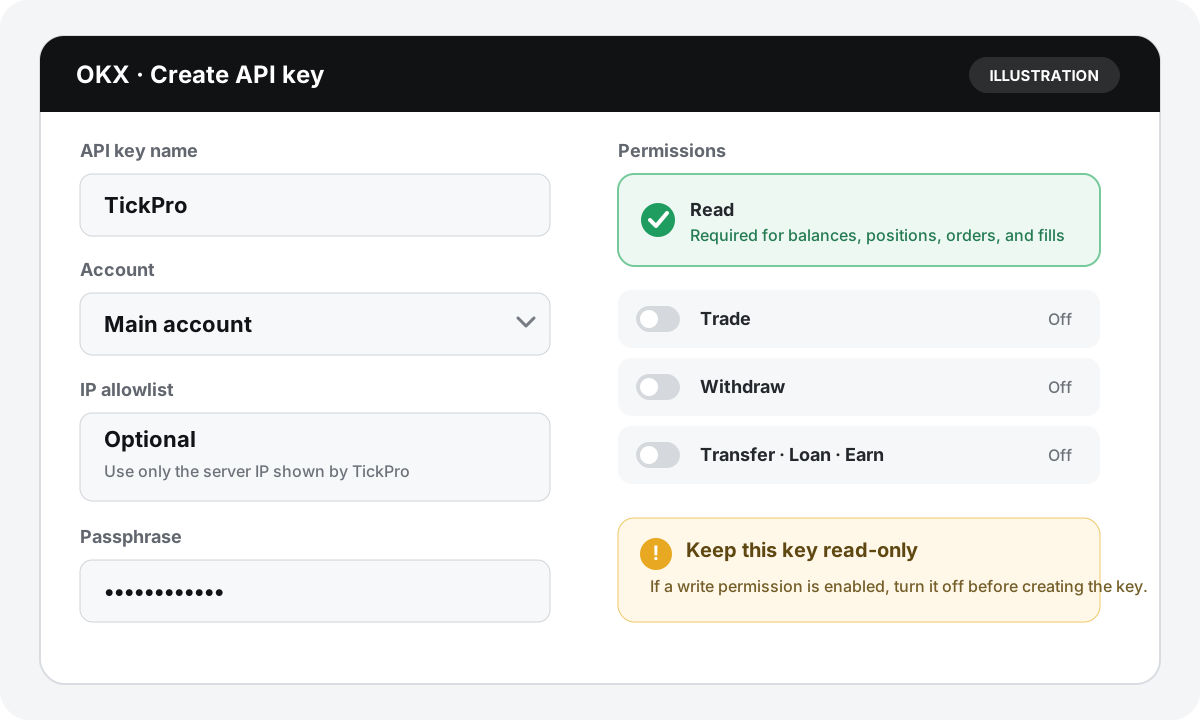
2. Fill in the key settings
Section titled “2. Fill in the key settings”| OKX field | Use this setting |
|---|---|
| API key name | TickPro |
| Account | The main account or sub-account you want to view |
| Purpose / Used for | Personal API access |
| IP allowlist | Only enter an address that TickPro explicitly shows |
| Passphrase | Create a new API passphrase and keep it safe |
| Permissions | Read only |
3. Copy all three values
Section titled “3. Copy all three values”After security verification, OKX shows API Key, Secret Key, and Passphrase.
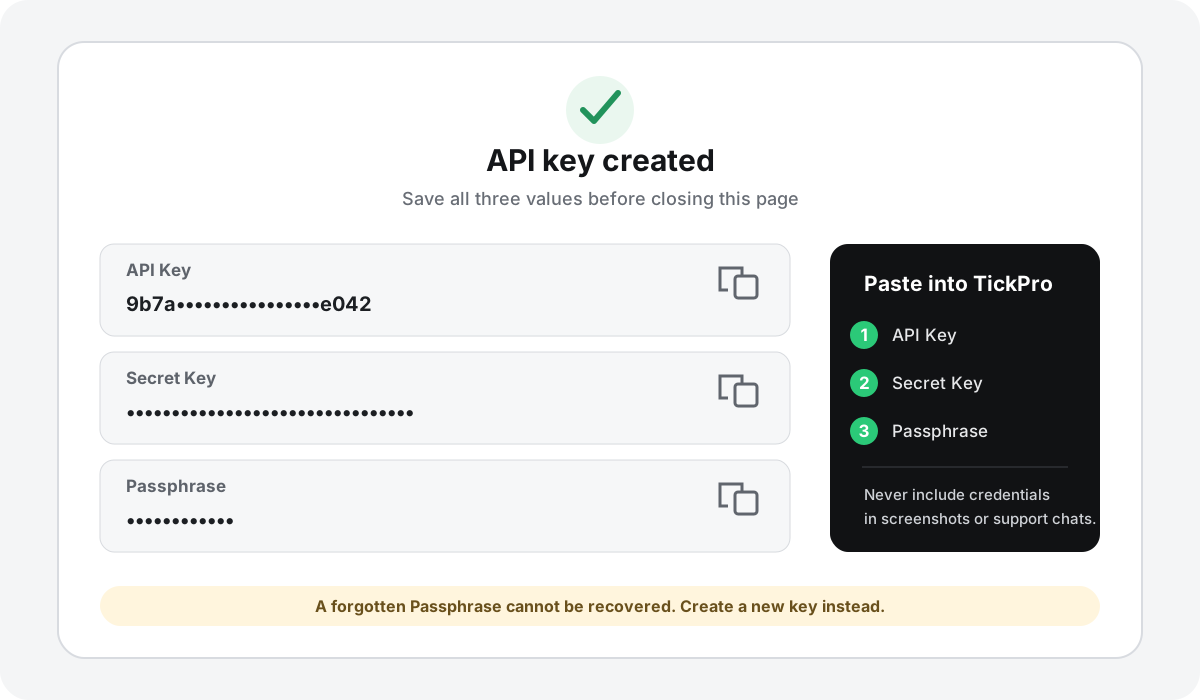
Where each OKX value goes
OKX API KeyTickPro API KeyOKX Secret KeyTickPro Secret KeyOKX PassphraseTickPro Passphrase4. Connect in TickPro
Section titled “4. Connect in TickPro”- Open TickPro → Settings → OKX.
- Tap Add account and select API Key.
- Paste the API Key, Secret Key, and Passphrase.
- Tap Validate API Key.
- When the connection succeeds, tap Save and connect.
TickPro uses the key to read supported balances, spot and derivatives positions, orders, and fills. It does not provide trading, transfer, or withdrawal actions.
Common problems
Section titled “Common problems”| Message or symptom | What to check |
|---|---|
Invalid passphrase / 50105 |
Use the API Passphrase, not your OKX login password |
IP restriction / 50110 |
Remove an incorrect allowlist or use the server IP shown by TickPro |
Invalid API Key / 50111 |
Recopy the full key and confirm it still exists |
Invalid signature / 50113 |
Recopy the Secret Key without extra spaces |
Region mismatch / 50119 |
Create the key in the OKX entity that serves your account region |
| Key cannot be created | Complete OKX security checks and review any regional balance requirement |
Revoke access later
Section titled “Revoke access later”Open OKX → API / API and connections, find the TickPro key, and delete it. You can also remove the connected account in TickPro.